What you'll learn in this article
- A DMARC record tells receiving mail servers how to handle emails that fail authentication checks and must be published in your domain’s DNS.
- Successful DMARC setup begins with identifying all legitimate email senders and making sure SPF and DKIM are properly configured.
- Starting with a monitoring-only policy allows organizations to analyze reports and resolve authentication issues before enforcing stricter controls.
- Ongoing report analysis, gradual policy deployment, and regular DNS reviews are essential to maintaining long-term email authentication and domain protection.
What is a DMARC record?
A DMARC record is the record where the DMARC rulesets are defined. This record informs the ISPs (like Gmail, Microsoft, Yahoo! etc.) if a domain is set up to use DMARC. The DMARC record contains the policy and should be placed in your DNS.
How to set up a DMARC record
1. Assess your email infrastructure
Before configuring DMARC, assess your current email infrastructure and identify all legitimate senders and sources associated with your domain. This includes:
- Email service providers
- Marketing automation platforms
- Any third-party email server used to send emails on your behalf
Once identified, document each sender and source in a centralized list, including the domain they use, their sending IPs, and whether they support SPF or DKIM. You’ll need this inventory in later steps when configuring SPF, DKIM, and DMARC to make sure every legitimate service is fully authenticated. Keeping this list updated also helps prevent gaps that lead to DMARC failures as new tools are added.
Once SPF and DKIM are in place, you configure DMARC by adding policies to your domain’s DNS records in the form of TXT records (just like with SPF or DKIM).
The TXT record name should be “_dmarc.yourdomain.com.” where “yourdomain.com” is replaced with your actual domain name (or subdomain).
2. Select TXT DNS records and types:
TXT DNS records are simple text entries you add to your domain’s DNS settings. These are usually found in your domain registrar or DNS hosting provider (e.g., GoDaddy, Cloudflare, Namecheap). These records tell receiving mail servers how to authenticate email from your custom domain and how to handle messages that fail DMARC checks.
At minimum, every DMARC configuration must include the v=DMARC1 and p= (policy) tags, but many organizations also set optional tags like rua, ruf, aspf, and adkim from the start because they provide visibility and better control.
If you're unsure where to locate these settings, look for the DNS management panel where you previously added your SPF or DKIM records. Your DMARC record will go in the same place.
| Tag Name | Required | Purpose | Sample |
|---|---|---|---|
| v | required | Protocol version | v=DMARC1 |
| p | required | Policy for domain | p=quarantine |
| pct | optional | % of messages subjected to filtering | pct=20 |
| rua | optional | Reporting URI of aggregate reports | rua=mailto:CUSTOMERID@for.dmarcanalyzer.com |
| ruf | optional | Addresses to which message-specific forensic information is to be reported (comma-separated plain-text list of URIs). | ruf=mailto:CUSTOMERID@for.dmarcanalyzer.com |
| rf | optional | Format to be used for message-specific forensic information reports (comma-separated plain-text list of values). | rf=afrf |
| aspf | optional | Alignment mode for SPF | aspf=r |
| adkim | optional | Alignment mode for DKIM | adkim=r |
Visit DMARC Tag Registry for other available tags. When you log in on app.dmarcanalyzer.com go to “DNS Records” to generate your DMARC record. Only the v (version) and p (policy) tags are required.
3. Choose a DMARC policy
Three possible policy settings, or message dispositions, are available:
- none policy: You just want to monitor the DMARC results and you do not want to take specific action on all the failing emails. You can use the “none” policy to start with DMARC and gather all DMARC reports and start analyzing this data.
- quarantine policy: You put the emails which fail the checks in quarantine. Most of these emails will end up in the junk folder of the receiver.
- reject policy: You can reject all emails that fail the DMARC check. The email receivers should do this ‘on SMTP level’. The emails will bounce directly in the sending process.
Choose one of the three DMARC policies to define how you want the email receivers to handle emails which fail the DMARC checks of your DMARC record.
To reduce the risk of blocking legitimate mail, it’s best practice to progress through these policies gradually, starting with none, moving to quarantine, and only adopting reject once you’re confident all sending sources are properly authenticated. This phased approach gives you time to validate traffic patterns and fix issues before enforcement becomes stricter.
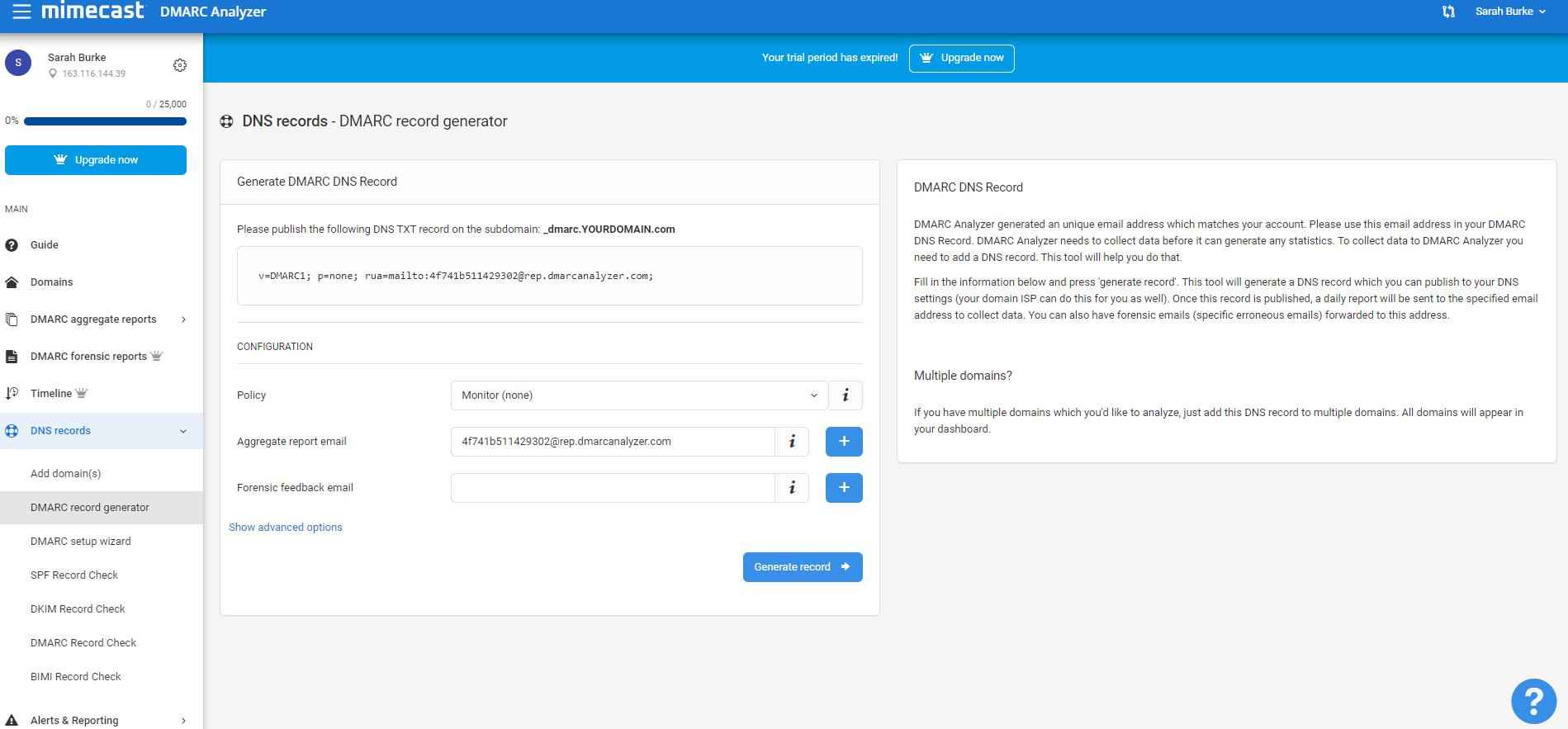
Alignment mode (aspf / adkim) refers to the precision with which sender records are compared to SPF and DKIM signatures, with the two possible values being relaxed or strict, represented by “r” and “s” respectively. In short, relaxed allows partial matches, such as subdomains of a given domain, while strict requires an exact match.
Make sure to include your email address with the optional rua tag to receive the daily reports.
4. Add the DMARC record to your DNS
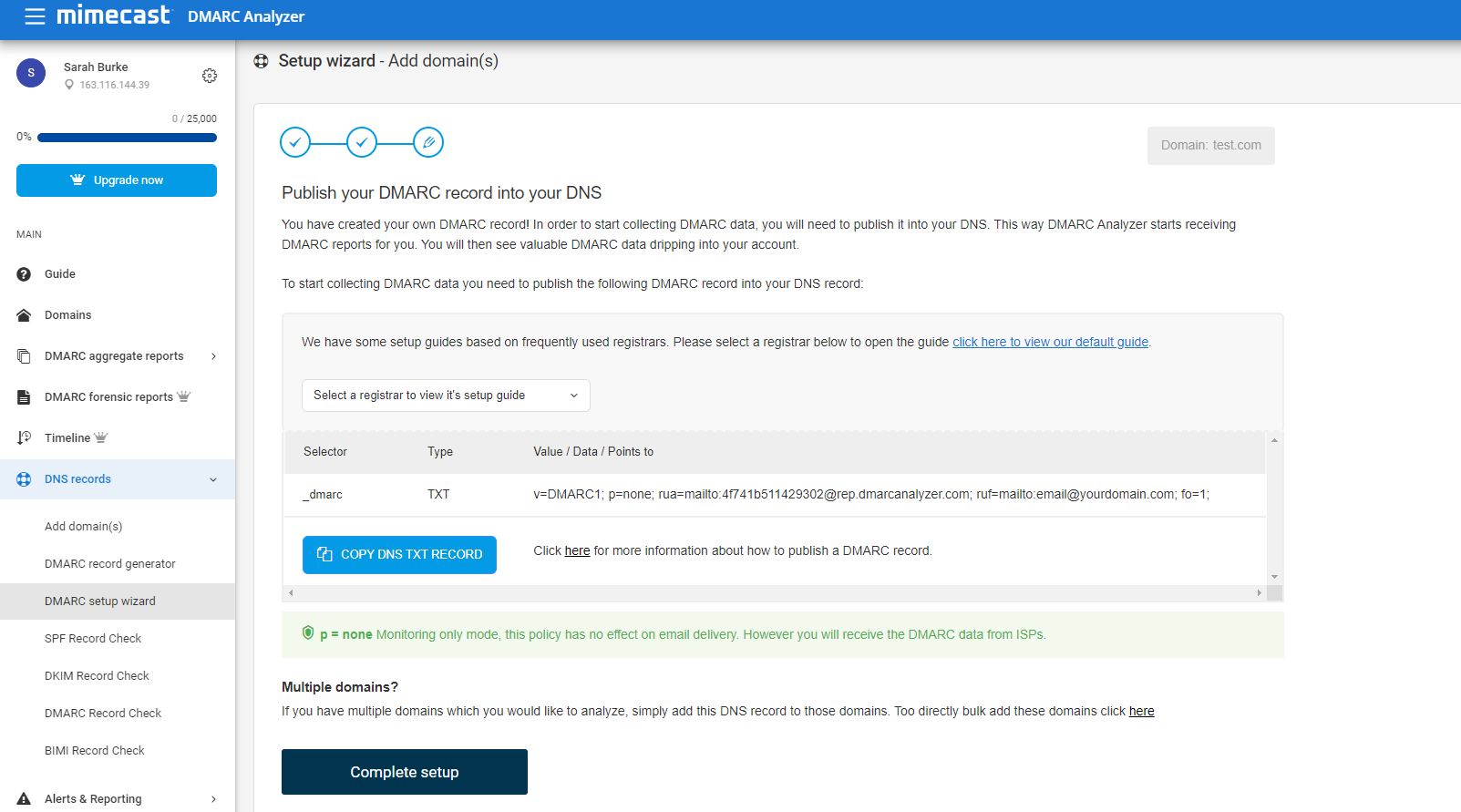
Creating a TXT record with the appropriate name and value is different for every domain host. Contact us if you need help setting it up with your provider.
It should be rather simple and may look something like this in the generator:
| Use the DMARC Record Generator to create your own DMARC record |
| Use the DMARC Record Checker to display, test and verify your DMARC record whether it’s valid |
| Use the record setup guides for guidance on how to set up your DMARC record for specific webhosts |
| User friendly DMARC analyzing software |
5. Analyze your DMARC reports
The daily reports come in an XML format. Read them to better understand your mail flow. The reports help you ensure your outbound mail sources are authenticating properly. Ensure that the various IPs sending email claiming to come from your domain are indeed legitimate, configure them properly with DKIM or add them to their SPF range. The reports also help administrators take fast action when they have a block policy in place if a new mail source comes online or an existing email source’s configuration breaks.
Here is an excerpt of a report showing results for messages sent from a couple of IP addresses, one sent directly and the other forwarded. Both messages passed:
<record>
    <row>
        <source_ip>207.126.144.129</source_ip>
        <count>1</count>
        <policy_evaluated>
            <disposition>none</disposition>
        </policy_evaluated>
    </row>
    <identities>
        <header_from>yourdomain.com</header_from>
    </identities>
    <auth_results>
        <dkim>
            <domain>yourdomain.com</domain>
            <result>pass</result>
            <human_result></human_result>
        </dkim>
        <spf>
            <domain>yourdomain.com</domain>
            <result>pass</result>
        </spf>
    </auth_results>
</record>
<record>
<row>
    <source_ip>207.126.144.131</source_ip>
    <count>1</count>
    <policy_evaluated>
        <disposition>none</disposition>
        <reason>
            <type>forwarded</type>
            <comment></comment>
        </reason>
    </policy_evaluated>
</row>
<identities>
    <header_from>yourdomain.com</header_from>
</identities>
<auth_results>
    <dkim>
        <domain>yourdomain.com</domain>
        <result>pass</result>
        <human_result></human_result>
    </dkim>
    <spf>
        <domain>yourdomain.com</domain>
        <result>pass</result>
    </spf>
</auth_results>
</record>
6. Gradually deploy your DMARC policy
We strongly recommend ramping up DMARC use slowly by employing these policies in this order. First, monitor your traffic and look for anomalies in the reports, such as messages that are not yet being signed or are perhaps being spoofed. Then, when you’re comfortable with the results, change the TXT record policy setting from “none” to “quarantine.” Once again, review the results, this time in both your spam catch and in the daily DMARC reports. Finally, once you’re absolutely sure that all of your messages are signed, change the policy setting to “reject” to make full use of DMARC. Revisit reports to ensure your results are acceptable.
Similarly, the optional pct tag can be used to stage and sample your DMARC deployment. Since 100% is the default, passing “pct=20” in your DMARC TXT record results in one-fifth of all messages affected by the policy actually receiving the disposition instead of all of them. This setting is especially useful once you decide to quarantine and reject email. Start with a lower percentage to begin with and increase it every few days.
So, a conservative deployment cycle would resemble:
- Monitor all.
- Quarantine 1%.
- Quarantine 5%.
- Quarantine 10%.
- Quarantine 25%.
- Quarantine 50%.
- Quarantine all.
- Reject 1%.
- Reject 5%.
- Reject 10%.
- Reject 25%.
- Reject 50%.
- Reject all.
Attempt to remove the percentages to complete the deployment. As always, review your daily reports.
7. Maintain ongoing compliance and security
Setting up DMARC is only the beginning. Ongoing management is essential so your domain stays protected. Over time, new email-sending services may be added, or existing ones may change behavior. That’s why regular audits of your DMARC, SPF, and DKIM records are necessary to ensure everything stays aligned and your DMARC authentication remains intact. Maintain compliance by reviewing your domain's DNS records periodically and confirming that all authorized mail sources continue to pass authentication checks.
It's also important to update the rua and ruf tags if your reporting addresses or infrastructure changes, to avoid missing key DMARC reporting data. This ongoing diligence supports a healthy DMARC setup that adapts to your organization’s growth. Staying up to date with evolving email security standards helps protect against spoofing threats, improve email deliverability, and strengthen your domain’s sender reputation. Use DMARC validation tools routinely to catch any issues before they affect message delivery.
Want to create your own DMARC record?
| Use the DMARC Record Generator to create your own DMARC record |
Common DMARC Setup Mistakes to Avoid
1. Ignoring DMARC Reports
Without reviewing reports, authentication issues go unnoticed. Aggregate data highlights unauthorized senders, misconfigurations, and gaps in email infrastructure that commonly appear during early adoption. Routine report analysis guides policy adjustments and reduces authentication failures, ensuring a clean path to a stricter DMARC configuration.
2. Missing SPF or DKIM for a Sending Service
If even one legitimate system lacks authentication, DMARC failures occur and can trigger broader authentication failures across your environment. Many organizations forget to authenticate secondary systems such as billing platforms, marketing tools, or CRM-generated emails. Each service must be added to SPF or configured with its own DKIM key as part of your DMARC configuration to ensure full coverage.
3. Misaligned “From” Domains
The visible From address must align with SPF and DKIM signing domains to prevent DMARC failure events. Alignment fails when third-party senders use their own domains by default or when subdomains connected to a custom domain aren’t included in policy design. Ensuring consistent domain use across all tools prevents gaps that otherwise undermine DMARC settings and enforcement.
4. Overly Strict Enforcement Too Early
Enabling rejection too soon can break legitimate customer emails and workflows. Most organizations need a phased rollout, starting with “none” to collect data and gradually tightening enforcement. A staged approach ensures all senders are authenticated before moving to quarantine or reject, keeping your DMARC configuration stable throughout the transition.
5. Using a Policy Without Reports
Another common mistake is publishing a DMARC record such as V=DMARC1, p=none but failing to include reporting addresses. While emails will still be delivered under a none policy, organizations receive no aggregate or forensic reports if no rua or ruf address is defined. Without these authentication reports, teams remain blind to spoofing attempts, misaligned senders, and configuration gaps, making it difficult to validate or strengthen DMARC enforcement over time.
Is my email flow configured correctly?
While implementing DMARC you will use the DMARC data to analyze your current email flows. You can do this by checking the data and verifying that your sending sources are configured correctly.
Please note that if you’re testing an updated DNS record (either DKIM or SPF), there could be DNS cache involved which influences the result. Updates to your SPF record should always be tested before performing them by using our prevalidation SPF checker.
User friendly DMARC analyzing software
Mimecast provides user-friendly DMARC analyzing software and act as your expert guide to move you towards a reject policy as fast as possible. DMARC Analyzer is a SaaS solution which empowers organizations to easily manage complex DMARC deployment. The solution provides 360° visibility and governance across all email channels. Everything is designed to make it as easy as possible.
| Use the DMARC Record Generator to create your own DMARC record |
| Use the DMARC Record Checker to display, test and verify your DMARC record whether it’s valid |
| Use the record setup guides for guidance on how to set up your DMARC record for specific webhosts |
| User friendly DMARC analyzing software |
Mimecast provides user-friendly DMARC analyzing software and acts as your expert guide to move you towards a reject policy as fast as possible.